This article will provide the steps to locate and set the mail server settings in Mail on a macOS device
Note As your device or email client may be using a different version than what was used in this article, the steps or words may be slightly different than presented below.
After opening the Mail application, select the Mail menu
Select Settings...
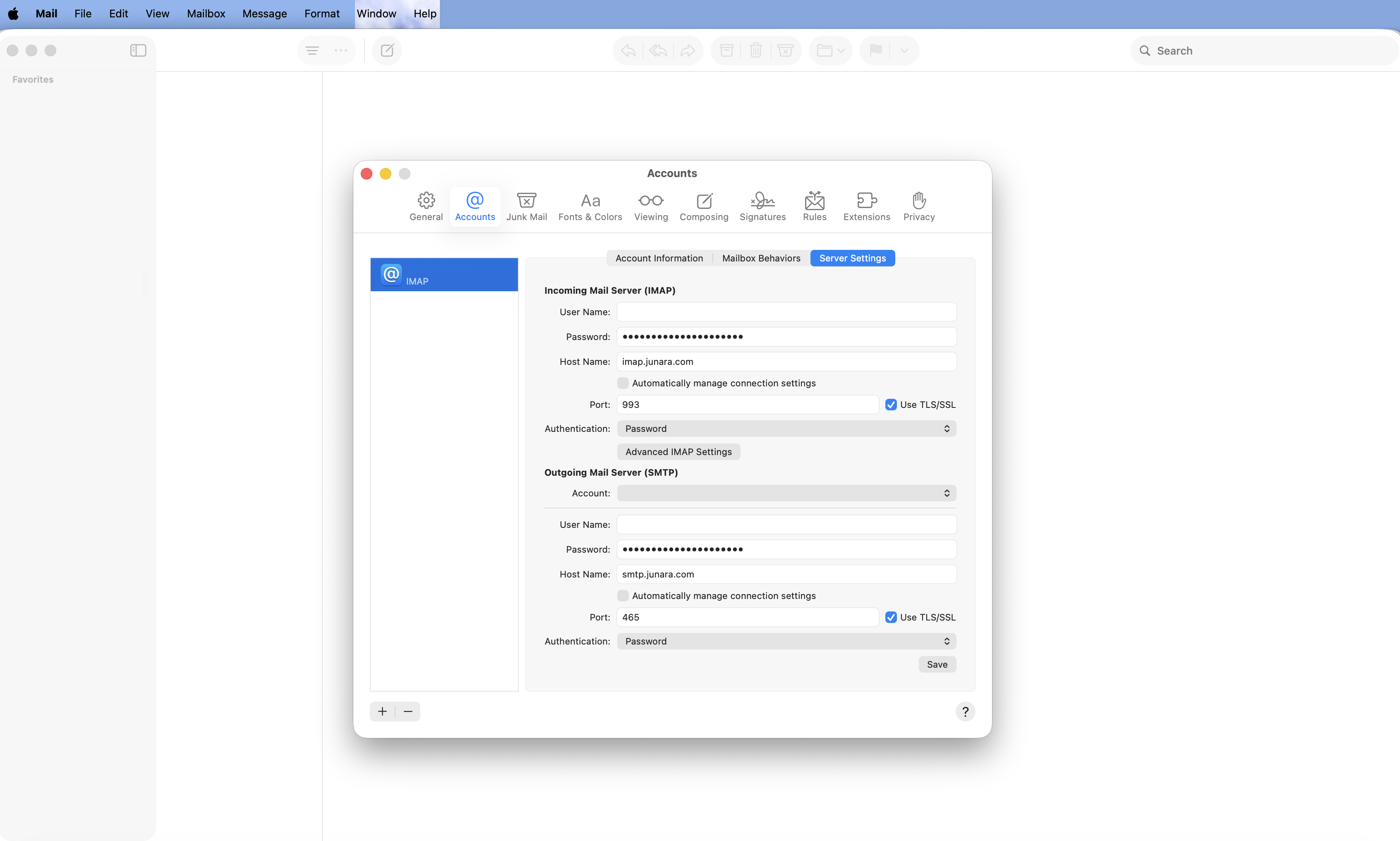
Select your email account on the left, then select Server Settings and enter the values as below
Incoming Mail Server (IMAP)
User Name: Enter your full email address
Password: Enter your email password
Host Name: imap.junara.com
Port: 993 and ensure that TLS/SSL is selected
Authentication: Password
Outgoing Mail Server (SMTP)
User Name: Enter your full email address
Password: Enter your email password
Host Name: smtp.junara.com
Port: 465 and ensure that TLS/SSL is selected
Authentication: Password
Select Save; once Save button is gone, close the setting to go back to your emails